
Docs — Folder Lister
A practical guide to setting up Folder Lister, choosing the right workflow, and checking your listings before they go live.
How FolderLister works
Start with the standard workflow. It is the everyday route from a folder of photos to a checked batch in the Web Editor, and it works without AI or an advanced folder structure. Once that route feels familiar, add only the shortcuts that suit your stock.
If you are new, complete First-Time Setup, then follow the Standard workflow once from start to finish. The later chapters are extensions, not prerequisites.
Beginner’s guide — your first Folder Lister batch
This guide walks you through your very first Folder Lister setup: getting your license from the website, installing the app, entering your license key, signing in with eBay, and preparing the app for your first run.
1. Get your license from the website
Visit folderlister.com and request your license key. Enter your email address and click Send code. A verification code will be sent to that email address. It can take a minute to arrive, so check your inbox and junk/spam folder. Enter the code on the website, click Get license key, and your license key will be emailed to you.
2. Download and install the application
Download the installer from: https://download.folderlister.com Run the installer and launch the application.
3. Enter your license key before signing in
On first launch, click Connect eBay. If your license key is missing, the app asks for it before opening eBay. Paste the key from your email and continue. You can also use Enter license key… in the account menu.
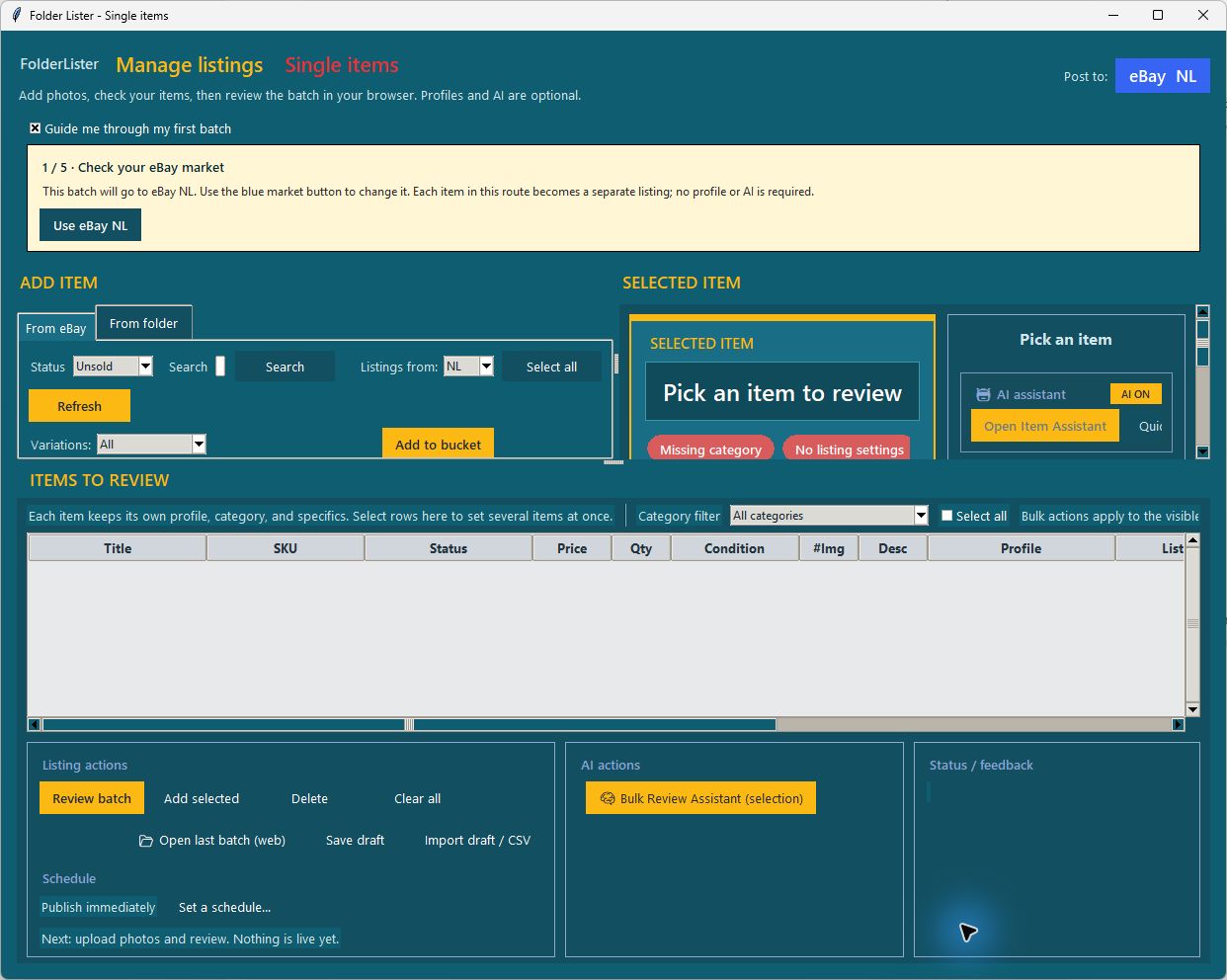
Enable Guide me through my first batch for interactive tips. The guide follows your progress through photos, categories, prices and the final review. Turn it off or back on using the same checkbox.
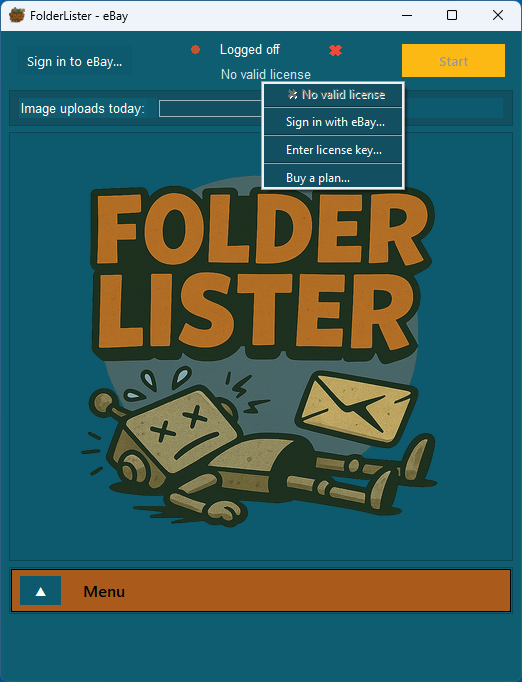
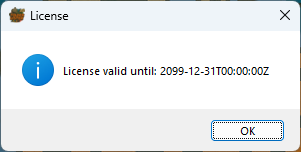
If the license is valid, the app will display your expiry date (example: 2099-12-31). After your first upload session, the license becomes tied to your eBay account and can only be switched once every 3 weeks.
4. Sign in with eBay
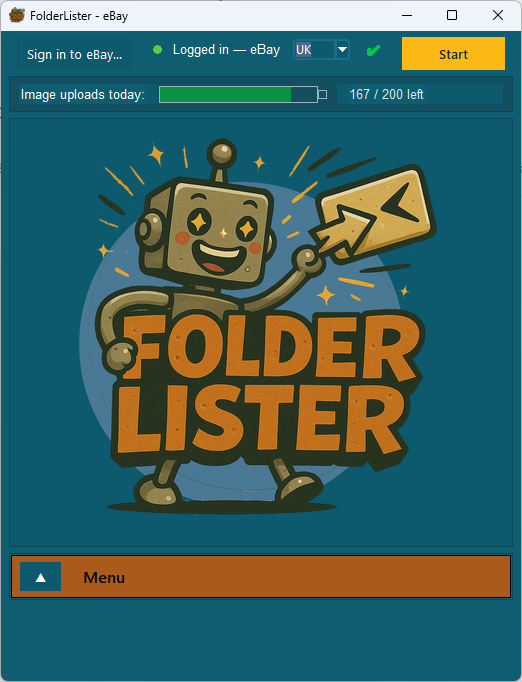
Once your license key is entered, click the Sign in with eBay… button and follow the login process. Complete the OAuth steps until the page closes and the app shows:
- Logged in
- Your selected eBay site (e.g., UK)
- A green status indicator
You should now see the eBay environment (env), site, and connection status ticked as OK.
5. Understanding the dashboard
Once logged in and licensed, the main screen shows:
- Your current eBay site (important: set this to the eBay website you're using so Folder Lister fetches the correct policies)
- Your daily image upload limit, visualized as a battery bar
- The Folder Lister robot reacting as uploads progress
6. Open the menu
Click the small menu button to open the main menu. This is where you can change settings and start a listing run.
Continue with the Standard workflow. It teaches the normal route through Single items before any AI, filename automation or advanced folder mapping is introduced.
Standard workflow — from a photo folder to eBay drafts
This is the main Folder Lister workflow. Use it for a mixed batch, a one-off item, or simply to learn how the app fits together. You can complete every step manually; AI is optional and comes later.
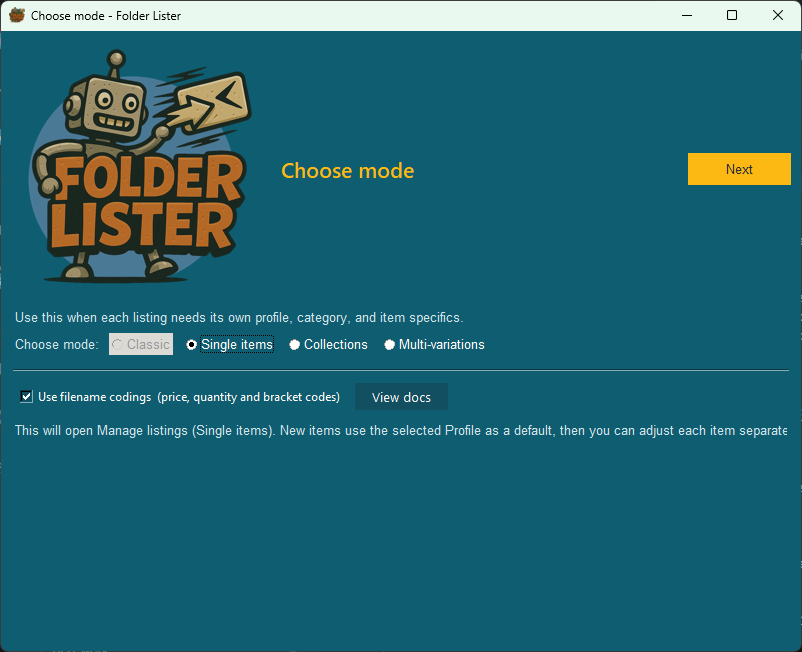
1. Open Single items
Click New batch to open Single items directly. Each row becomes a separate listing and can keep its own category and item specifics. For a collection, select multiple rows to apply shared values. Collections, Multi-variations and Classic remain available through Other workflows.
2. Load images from a folder
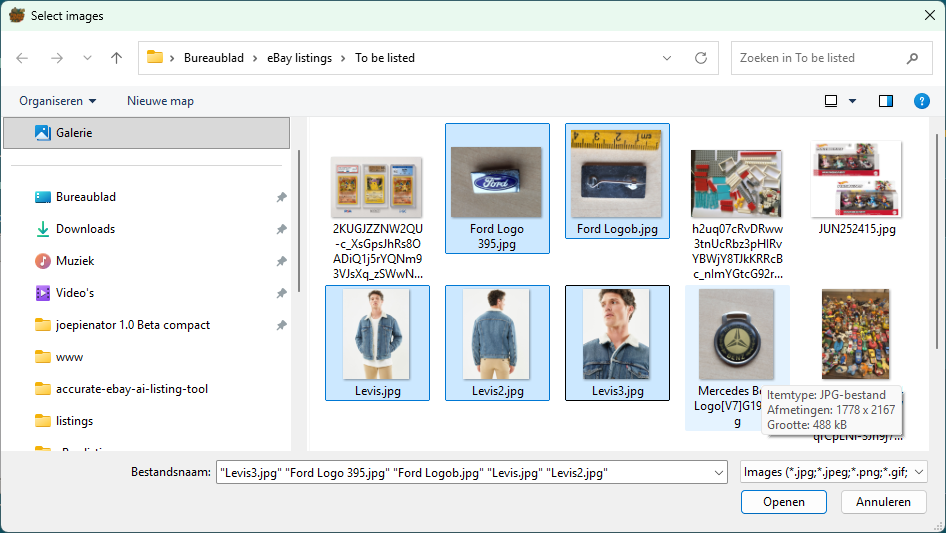
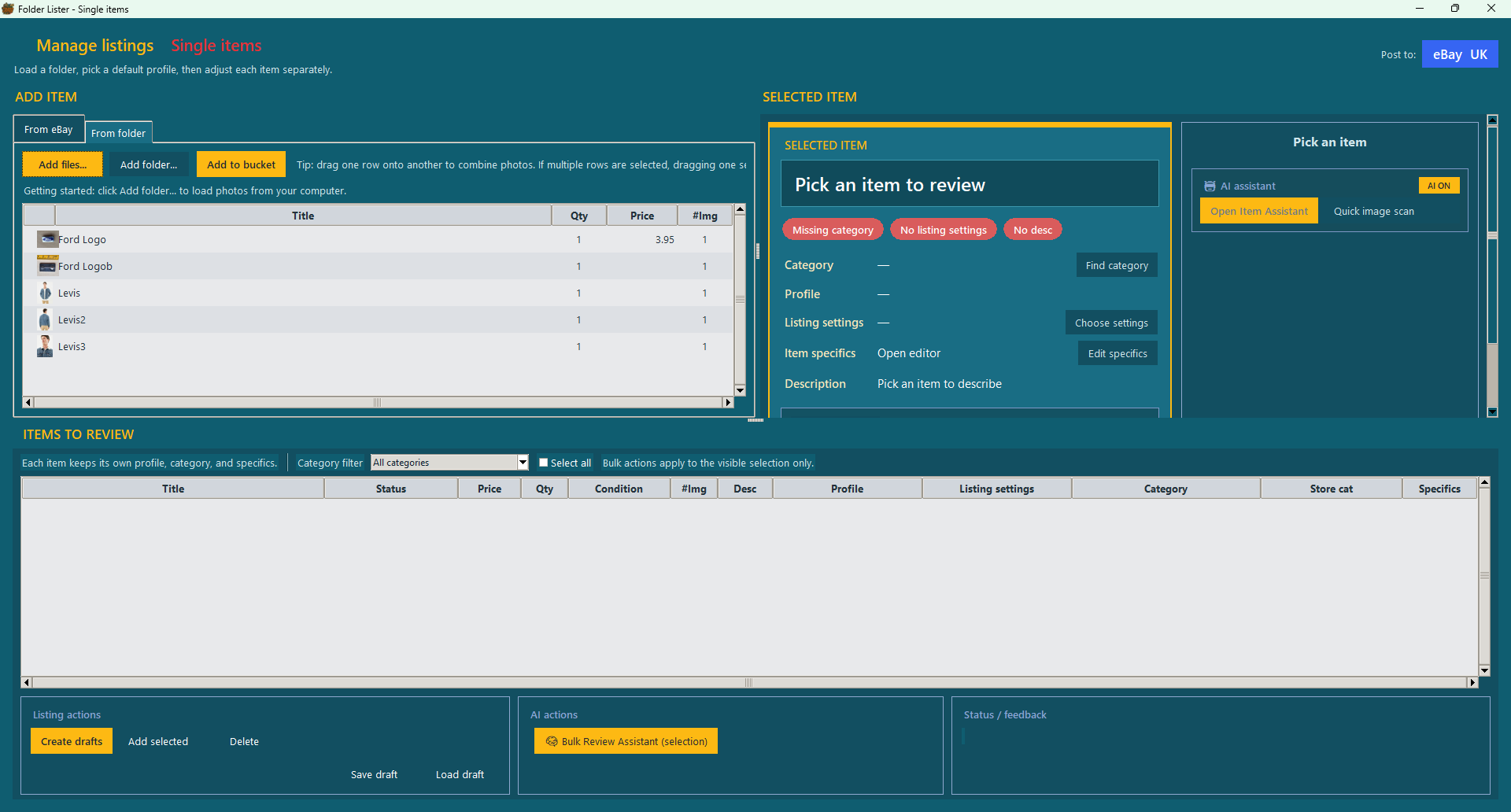
Open the From folder tab. Choose Add folder… to load all supported images in one folder, or Add files… to select individual images. Nothing has been added to the listing batch yet; this top table is your staging area.
3. Combine the photos that belong to one item
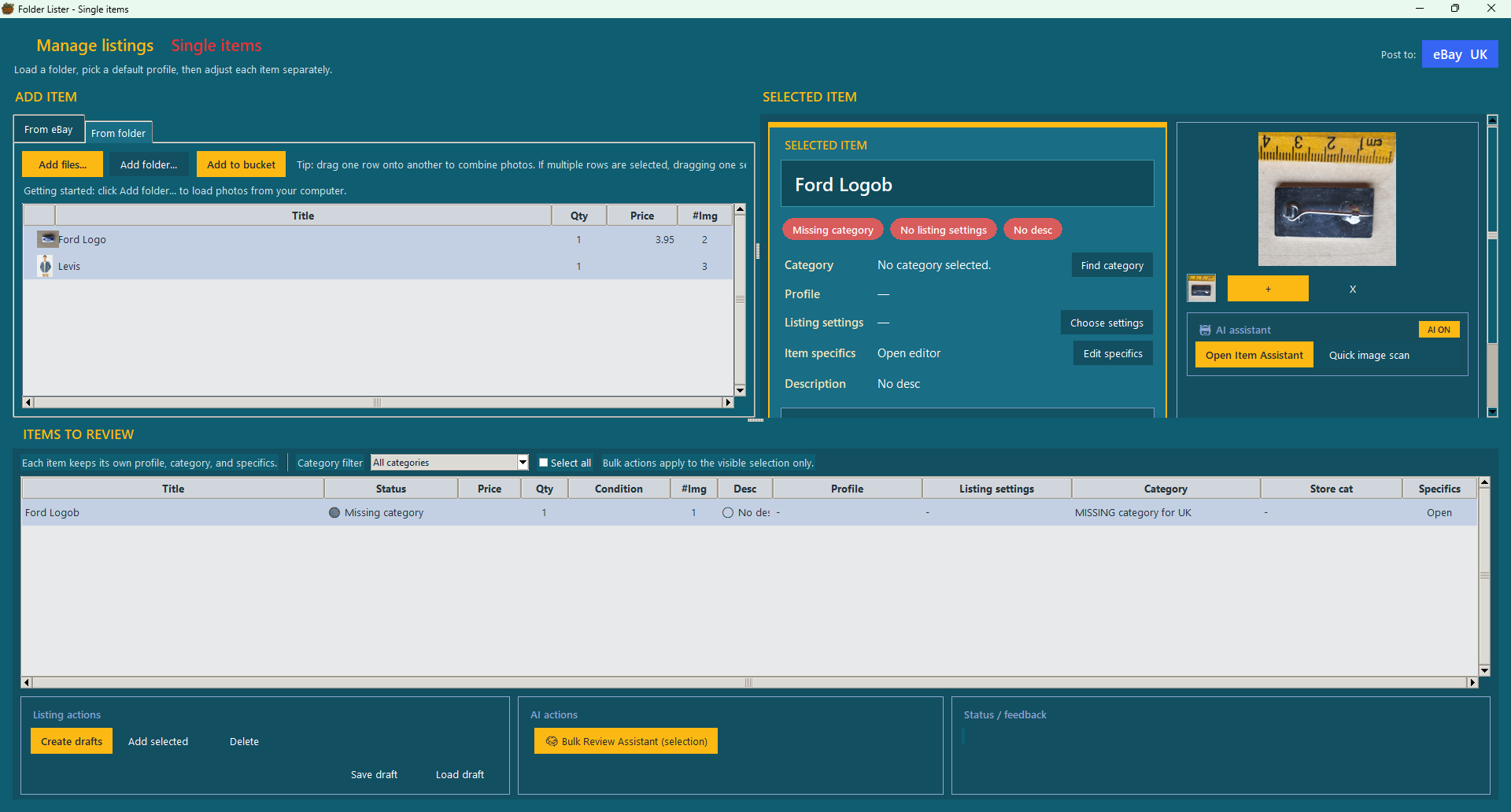
If several rows show the same item, select the extra rows and drag them onto the main photo. The separate rows disappear and the main row’s #Img count increases. You can also use matching b, c and d filename suffixes later; manual dragging is the clearest method while learning.
4. Move the items to the bucket
Select the prepared rows with Ctrl or Shift and click Add to bucket. You can also drag selected rows into the lower table. The items now appear under ITEMS TO REVIEW; this lower table is the batch that Folder Lister will turn into drafts.
5. Optionally save reusable product information
For your first batch, you can choose categories and edit item specifics directly on the rows without creating a profile. Use a profile when you want to reuse the same information in later batches.
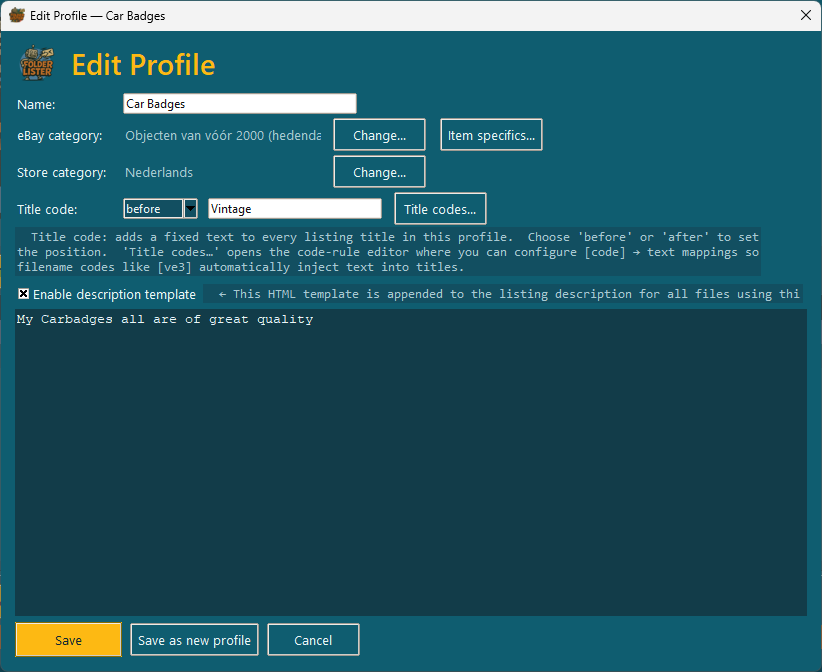
A product profile stores reusable product information: the eBay category, store category, common item specifics, fixed title text and an optional description template. Expand Profile preset and choose New profile…, or open the profile editor from a Profile cell.
- Give the profile a recognisable name, such as Car badges or Men’s shirts.
- Select the correct eBay category and, if you use one, the eBay store category.
- Add only defaults that really apply to every item using this profile. You can leave item specifics for the later chapter while learning.
- Save the profile, select the relevant bucket rows, then choose it from a Profile cell. Because the clicked row is part of the selection, Folder Lister applies the profile to all selected rows.
6. Bulk-edit the bucket in the desktop app
Do the repetitive corrections before creating drafts. Use Ctrl/Shift or Select all to select the rows you want to change.
- One row: double-click Title, Qty, Price or Condition and edit the cell.
- Several rows: right-click the relevant Title, Qty, Price, Condition or item-specific cell and choose Set value for selected….
- Copy a value: right-click a cell, choose Copy value, then right-click the same column and choose Paste value in selected.
- Profiles and listing settings: keep the rows selected, click the appropriate cell and choose the saved profile. The choice applies to the selection.
- Description: right-click a row and choose Write description.
7. Set up listing settings and eBay policies
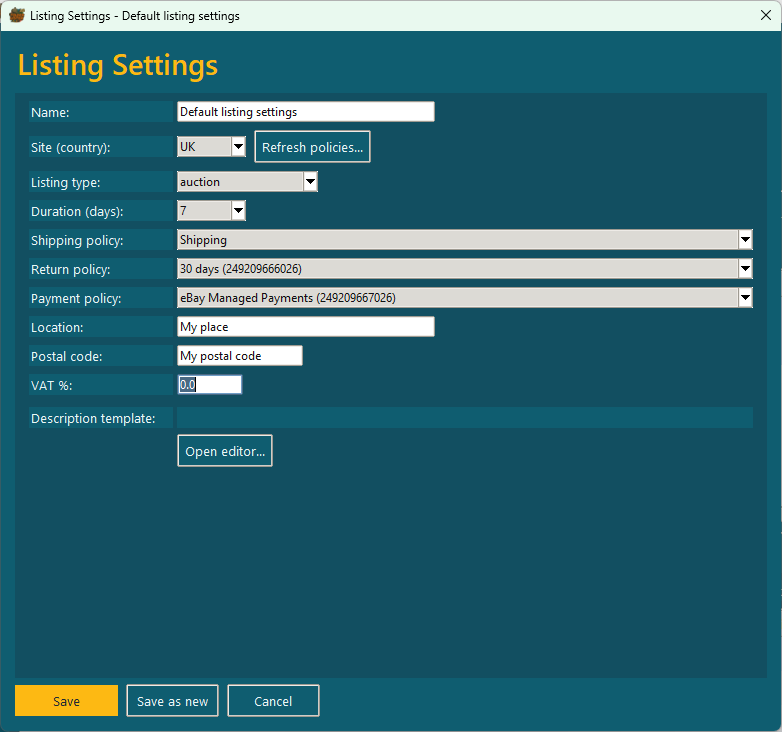
Listing settings are separate from the product profile. They store how the item is sold: eBay site, Fixed Price or Auction, duration, shipping policy, return policy, payment policy, location, postal code, VAT and an optional description template.
- Select the rows that share the same selling rules.
- Click a Listing settings cell and choose Edit listing settings….
- Set Site (country) first. Policies load automatically when the editor opens or you change the site. Use Refresh policies… to retry or fetch changes.
- Select the shipping, return and payment policies returned by eBay. Fill in the other fields you use and click Save as new.
- Choose the saved listing-settings profile from the cell menu to apply it to the selected rows.

8. Check the bucket and create drafts
Check titles, categories, conditions, prices, quantities, photos, descriptions and required item specifics. A saved profile is optional; you can finish selling settings in the Web Editor. Scheduling is available through the optional Schedule button. Click Review batch to upload photos and open the Web Editor. Nothing goes live until you press Publish there.
With guided tips enabled, use Check my batch in the Web Editor to find basic missing values. Click a reported issue to reach the field. After publishing, the results panel shows successes and failures. If a network failure leaves an outcome unknown, check active and scheduled listings in Seller Hub before retrying.
The next chapter covers the final web check, publishing and reopening your last batch.
Basic filename codes — price, quantity and extra photos
Once the manual workflow is clear, filenames can remove the first round of repetitive edits. Start with only these three rules.
| Filename | Result |
|---|---|
Dolphin 195.jpg | Title: Dolphin; price: 1.95; quantity: 1 |
Dolphin 395x2.jpg | Price: 3.95; quantity: 2 |
Dolphin 2x995.jpg | Quantity: 2; price: 9.95 |
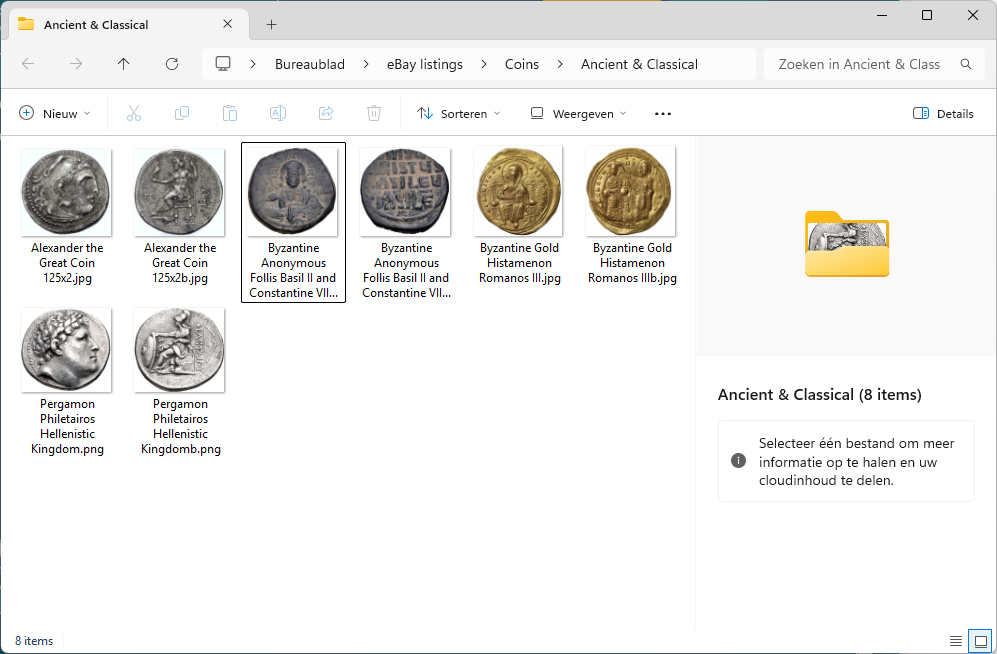
Dolphin 195b.jpg, Dolphin 195c.jpg, Dolphin 195d.jpg | Extra photos grouped with Dolphin 195.jpg |
Prices are written in cents: 195 means 1.95, 1099 means 10.99, and 12000 means 120.00. The eBay site determines the currency.
The main filename creates the item. Matching trailing letters b, c, d and so on add photographs to that same item. Check the #Img count after importing.
b image becomes its second photo.Optional AI & Voice — review assistance for a prepared bucket
AI is an optional layer on top of the standard workflow. Use it after you understand the bucket, profiles and listing settings. The assistant can propose categories, titles, descriptions and item specifics from photos and voice notes, but nothing is applied until you review it.
Follow the standard workflow through listing settings, select the rows you want the assistant to review, then continue below. Your saved product and listing-settings profiles remain in control.
1. Open the Bulk Review Assistant
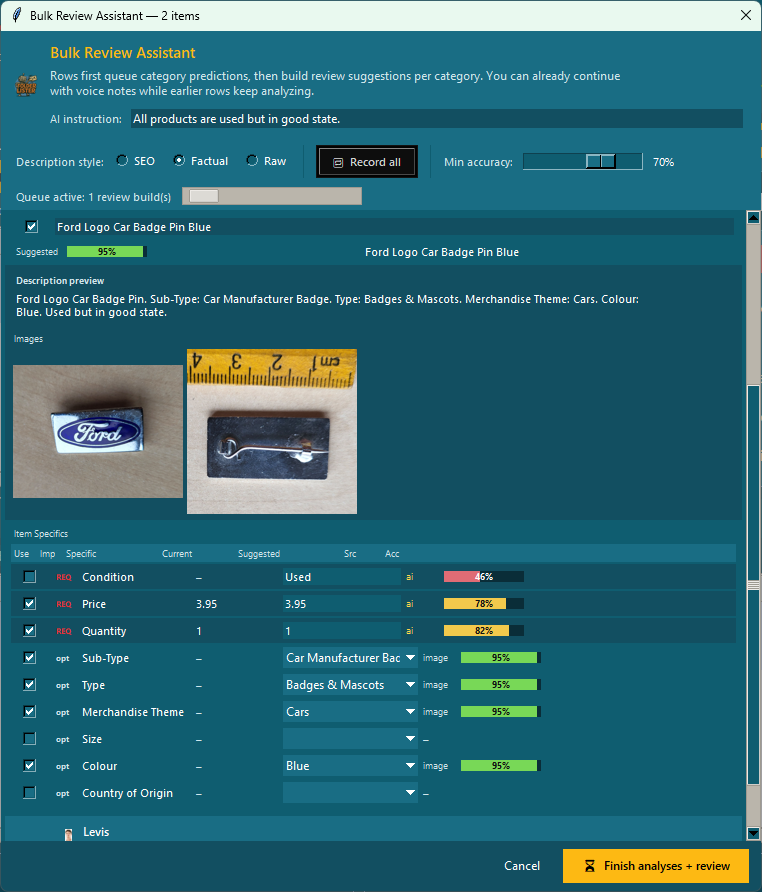
In the AI actions bar click Bulk Review Assistant (selection). The assistant queues category predictions for every selected item, then builds review suggestions per category. You can already start voice-noting earlier items while later items are still being analysed.
At the top of the window:
- AI instruction – a general prompt that applies to every item in the batch. A typical example: “All products are used but in good state.”
- Description style – SEO / Factual / Raw. Factual is the safe default for second-hand items.
- Record all – starts a bulk voice recording session across all items (press Space to jump to the next item).
- Min accuracy – only apply AI suggestions above this confidence threshold.
2. Record voice notes per item (while images analyse)
Click Record all. The first item expands, the record button turns red, and the status line tells you [Space] = next item. For each item, speak any facts the AI cannot see in the photos:
- Selling price (e.g. “Selling for 57.95 pounds”)
- Size or dimensions (e.g. “Size M”)
- Country of origin (e.g. “Made in China”)
- Condition details (e.g. “Used, very good”)
- Anything else you want added to the description
Press Space to move to the next item without stopping. When you’re done, click STOP recording.
3. Review the AI suggestions per item
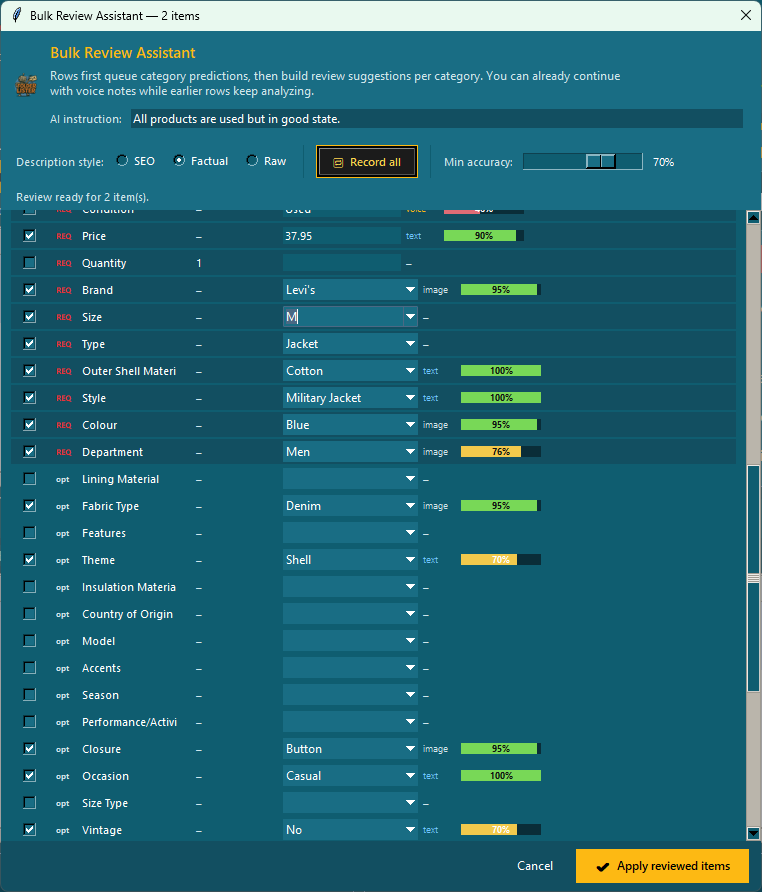
When the AI has finished, each item shows a full review panel: the predicted category (with alternative suggestions and confidence percentages), a suggested title, a description preview, and an item-specifics table.
The Src column tells you where each value came from:
- image – extracted from the photos
- voice – transcribed from your voice note
- text – parsed text from your voice note (for example a price or a size)
- merged – combined from multiple sources
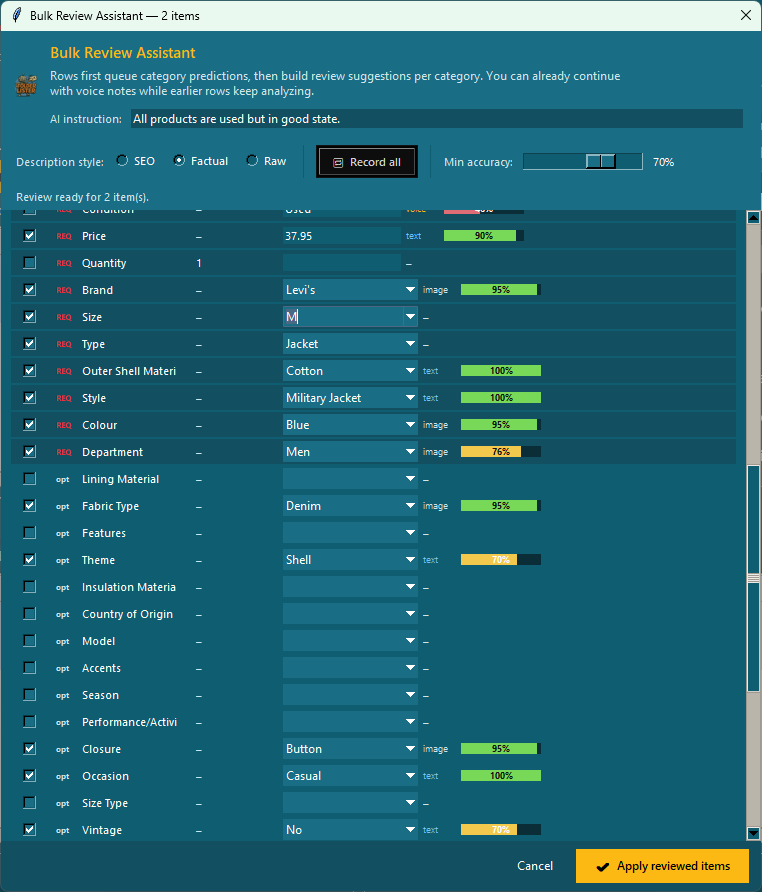
The Acc bar next to each row shows confidence: green = high, yellow = medium, red = low. Adjust values in the dropdowns where you disagree.
4. Apply the reviewed items
Click Apply reviewed items at the bottom of the Bulk Review Assistant. The assistant closes and the rows in ITEMS TO REVIEW switch to status AI analyzed. The title, category, condition, item specifics, and description are now filled in on each row, and the SELECTED ITEM panel shows three green badges: Category set, Listing settings set, AI draft.
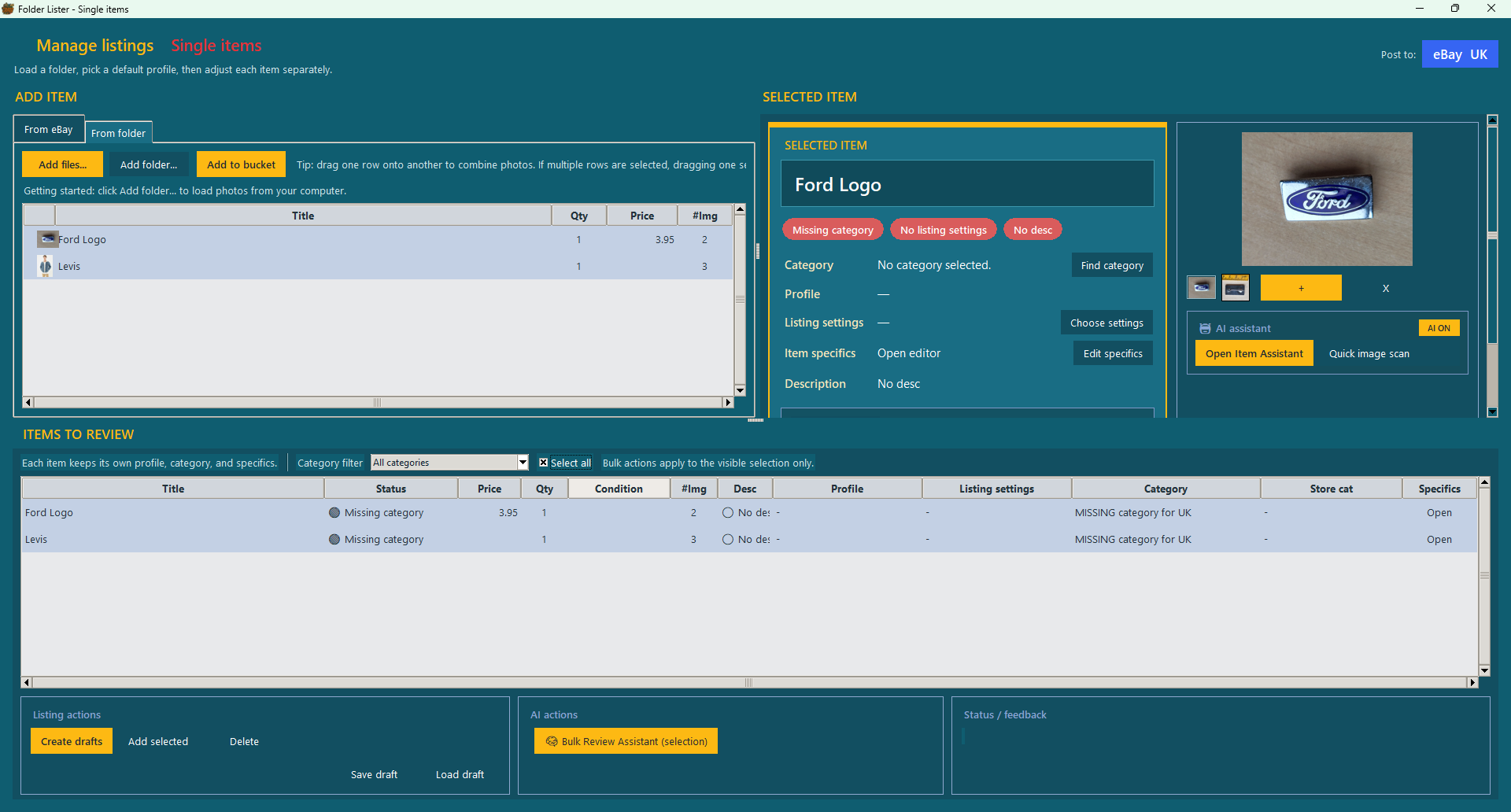
5. Create drafts and continue through the scheduler
Click Create drafts at the bottom-left. The Publish scheduler dialog appears. Leave it empty to publish immediately, or pick a start date and add minutes between listings so a large batch rolls out in a controlled stream instead of all at once. Click Continue to upload the images to eBay and submit the drafts.
6. Final review in the Web Editor
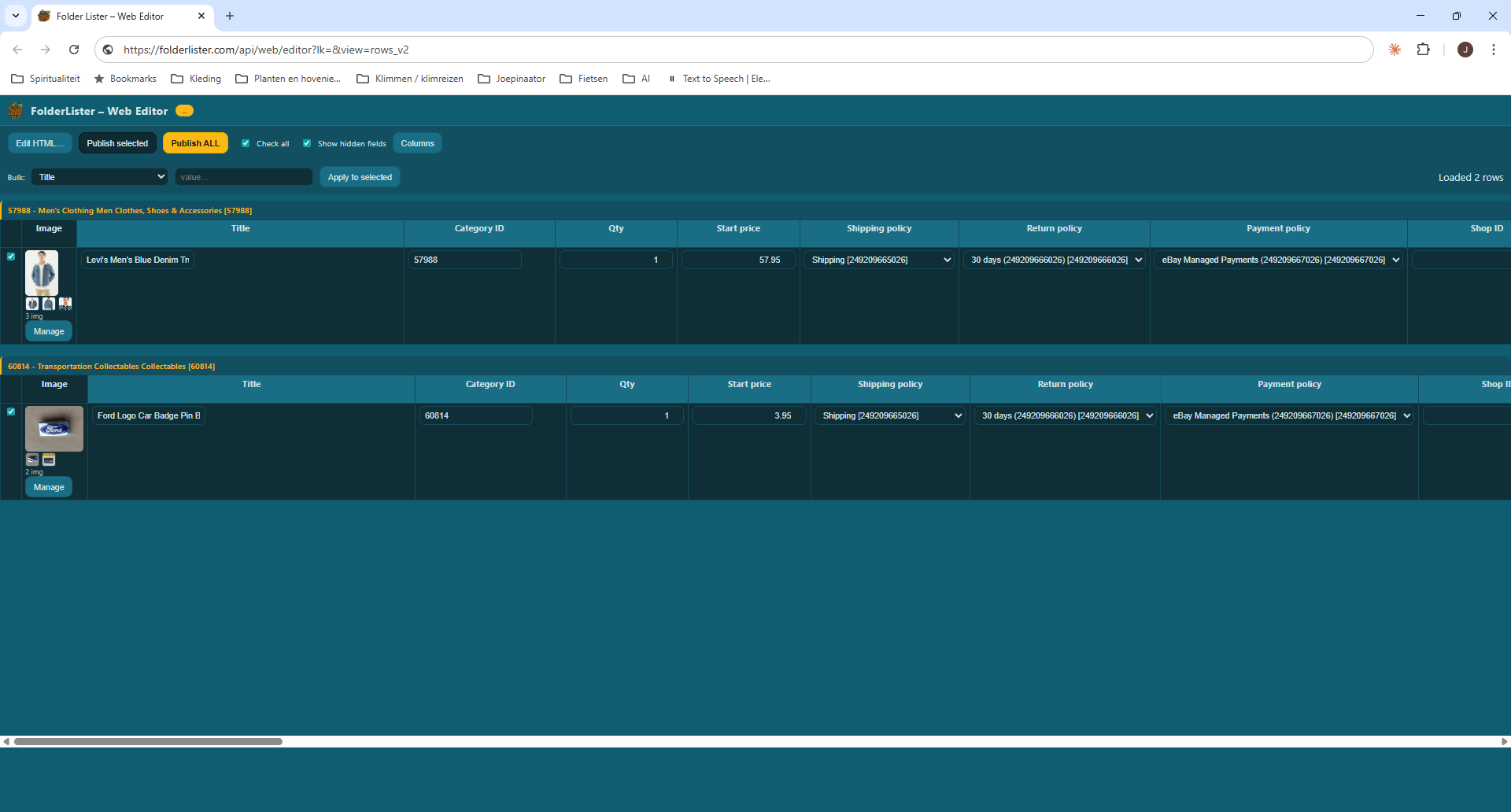
When the upload finishes, Folder Lister opens the Web Editor in your browser. Items are grouped by category. You can review titles, category ID, quantity, start price, shipping / return / payment policy, shop ID, images, and the HTML description. Use the Bulk dropdown + Apply to selected to change a column for many rows at once, or click Manage on a row for detailed edits.
7. Publish ALL
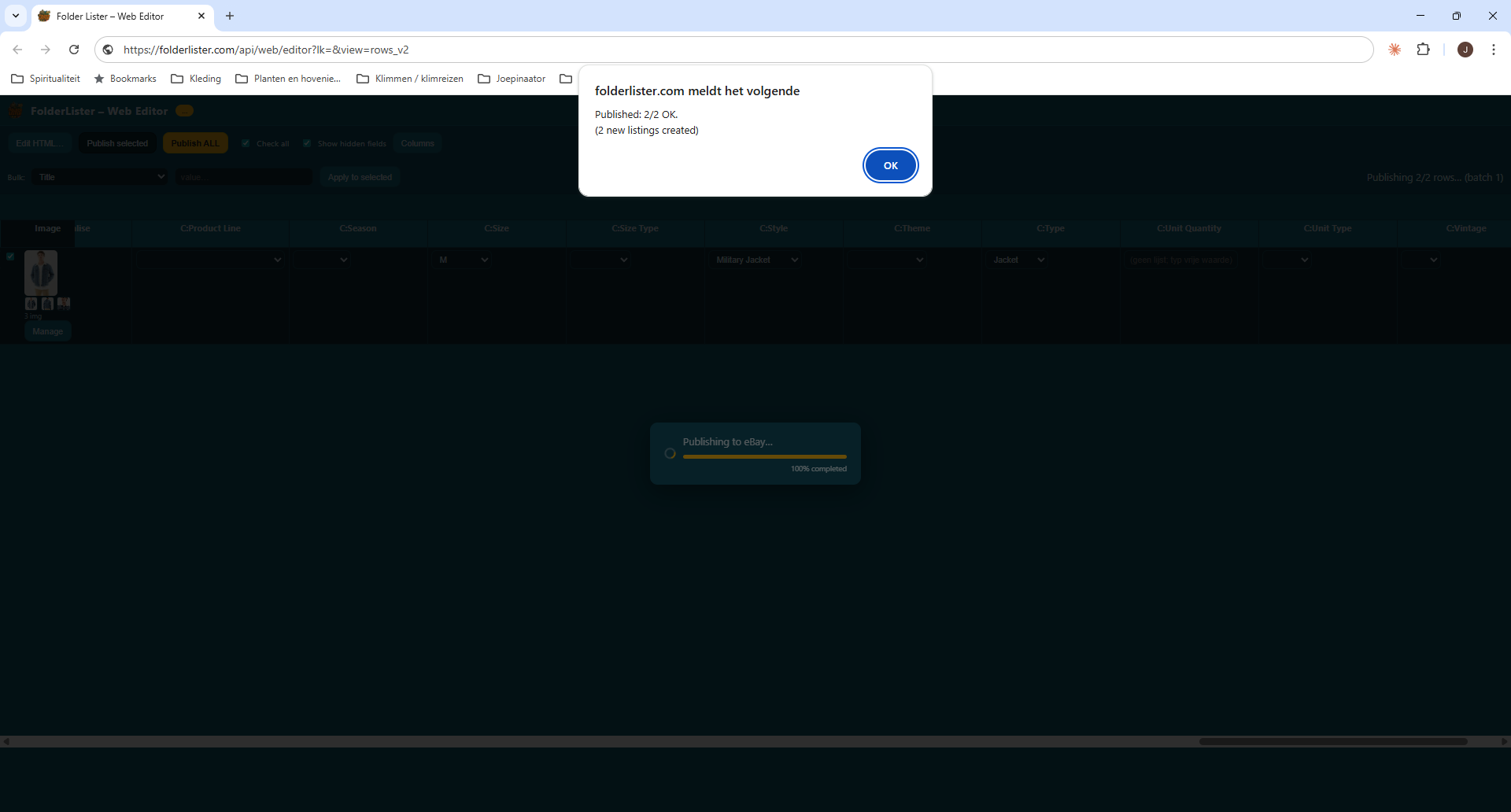
When everything looks right, click Publish ALL (or Publish selected for a subset). Folder Lister sends the listings to eBay and shows a confirmation dialog such as “Published: 2/2 OK. (2 new listings created)”. Your items are now live on eBay.
Advanced: Classic mode — mapped folder trees
Classic mode is the power-user layer of Folder Lister. You maintain one root folder, make a subfolder for each kind of item, and bind every subfolder to a reusable product profile. Anything you later drop into that folder inherits the same product setup. This is efficient at scale, but it is not required for normal listing work.
Link a listing-settings profile to the product profile and both travel together. The next batch from that folder starts with the same category data and selling rules already in place.
It is most useful for repeat stock and established collections where every category folder is reused. One profile can stay active across multiple country sites, with a category per active site and the shared item specifics kept together.
1. Select your root folder
Start Classic mode and select the main storage folder that contains your listing folders. Folder Lister will scan the structure and load the folders it finds.
A clear folder structure is useful because each folder can be linked to its own profile with its own category, item specifics, description text, and store-related settings.
C:\eBay listings
├─ pins
│  ├─ cars
│  ├─ motors
│  └─ sports
├─ coins
│  ├─ ancient
│  └─ country
│     ├─ Netherlands
│     └─ England
└─ cards
   ├─ europe
   ├─ world
   └─ USA
Start with one folder the next time you list a familiar item. Create its profile, use it, and add more category folders only when you need them. You do not have to design the whole structure in advance.
2. Category Mapping
After selecting your folders, the app will open the Category Mapping Setup screen:
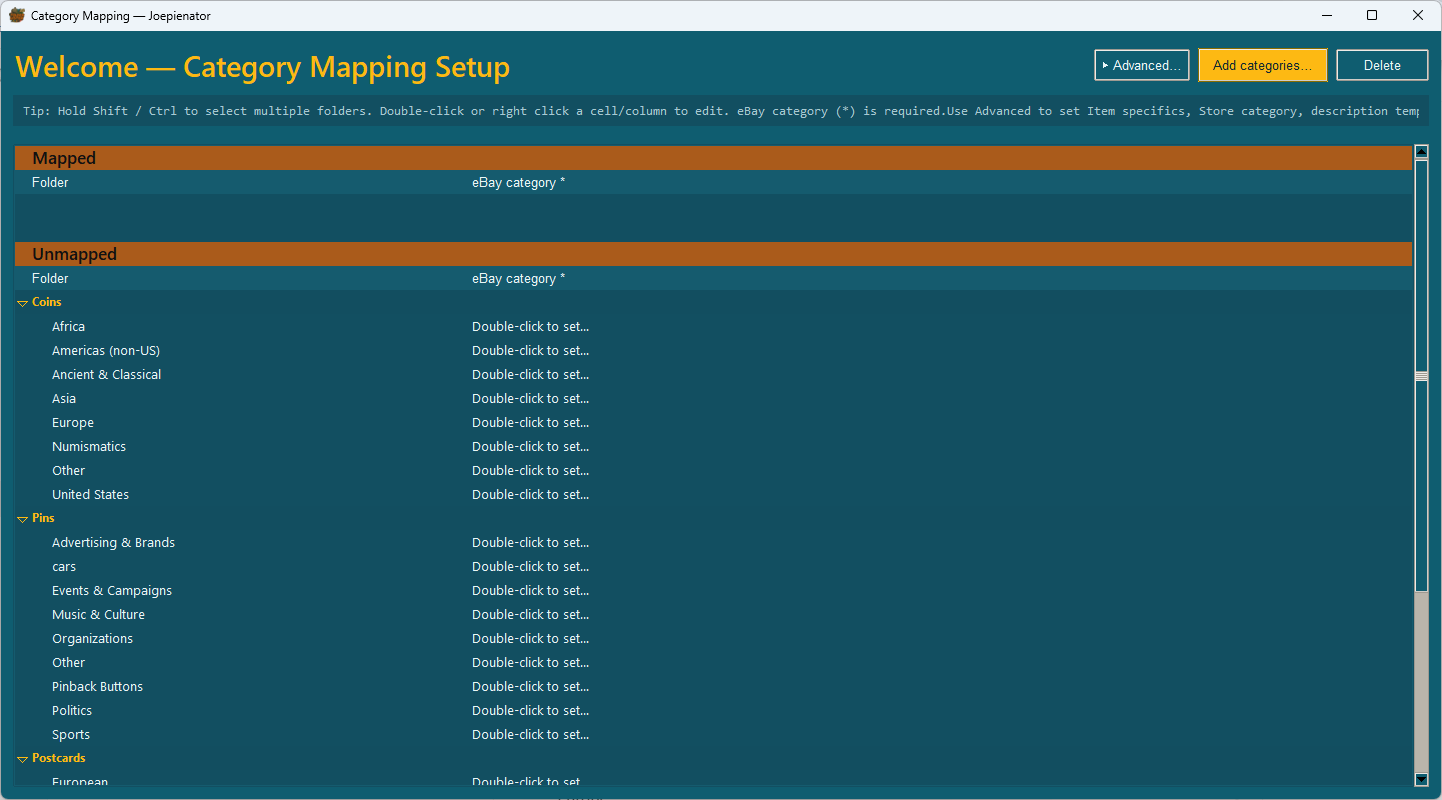
Here you can:
- Double-click a row to set the correct eBay category
- Use Shift / Ctrl to select multiple folders at once
- Right-click to edit a profile or apply settings quickly
- Use the search box to find matching categories (comma-separated keywords improve results)
3. Create or edit the product profile
Open Edit profile for the selected folder. This is the reusable product setup behind that folder.
In the profile window you can:
- Fetch and set the eBay category
- Set the eBay store category
- Set item specifics for that folder/profile
- Select categories for other active country sites when multiple countries are enabled in the main menu
- Keep all of those country-specific categories active under the same profile
- Add fixed title text, title codes and an optional description template
This means one profile can be reused to post the same folder structure to multiple eBay country sites while keeping the right category selection and item specifics together.
4. Link the listing settings
Use the listing-settings profile you created in the standard workflow. Select it inside the product profile so category data and selling rules travel together whenever Classic mode loads that folder. If the correct settings do not exist yet, create them there first: choose the site, refresh the eBay policies, select shipping, return and payment, then save.
5. Start – prepare your first listing run
When your folders and profiles are ready, click Start from the main screen.
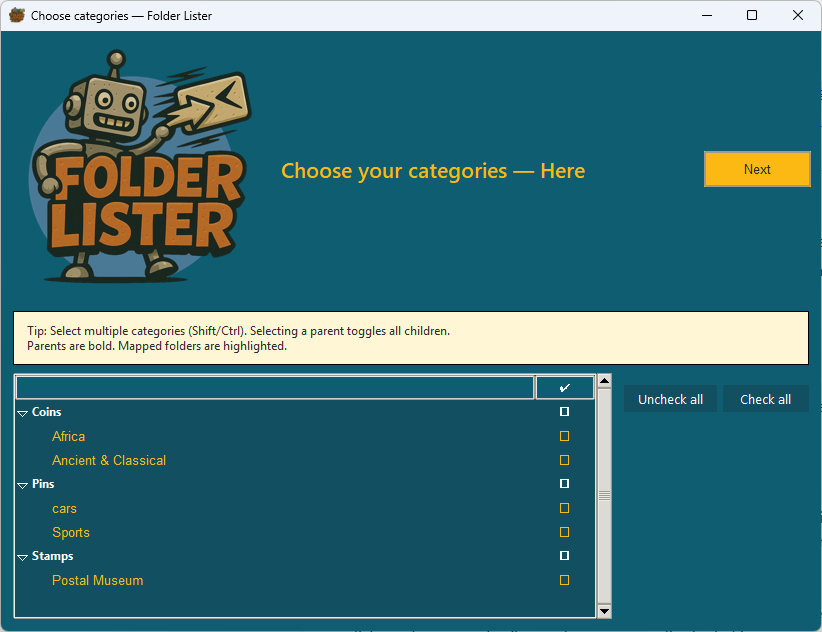
Select the folders you want to upload in this batch. Tick the boxes next to the folders, then press Next.
No listing-settings profile attached? Use the one-off setup
6. Basic listing settings & scheduler
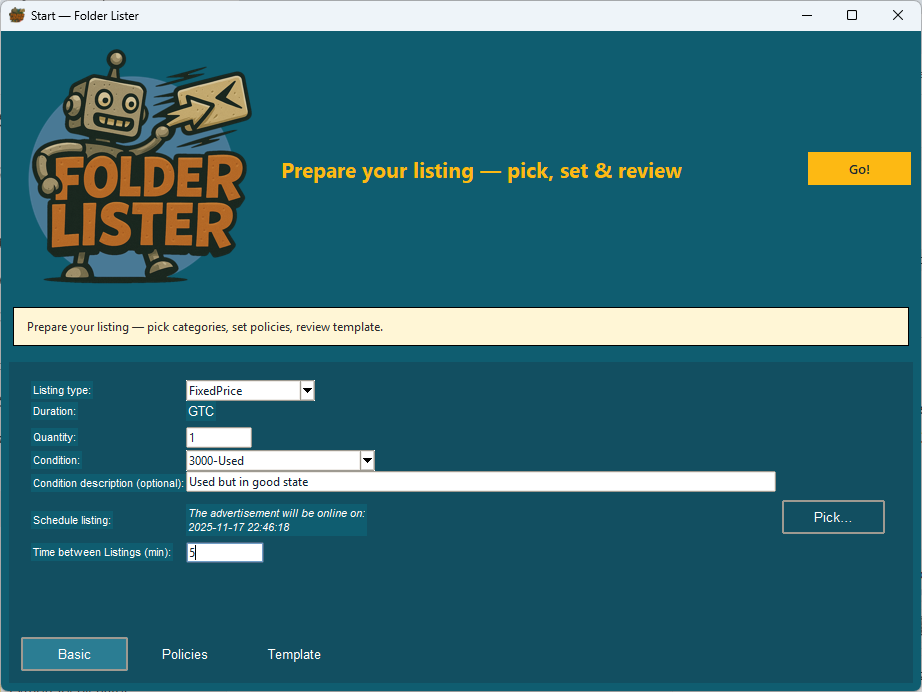
On the Basic tab you choose:
- Listing type (FixedPrice / Auction)
- Duration
- Quantity
- Condition and optional Condition description
The scheduler is especially useful for auctions. With Schedule listing you pick the start date and time; with Time between listings (min) you add a small delay between each listing so hundreds of listings go live in a controlled stream instead of all at once.
7. Policies & VAT
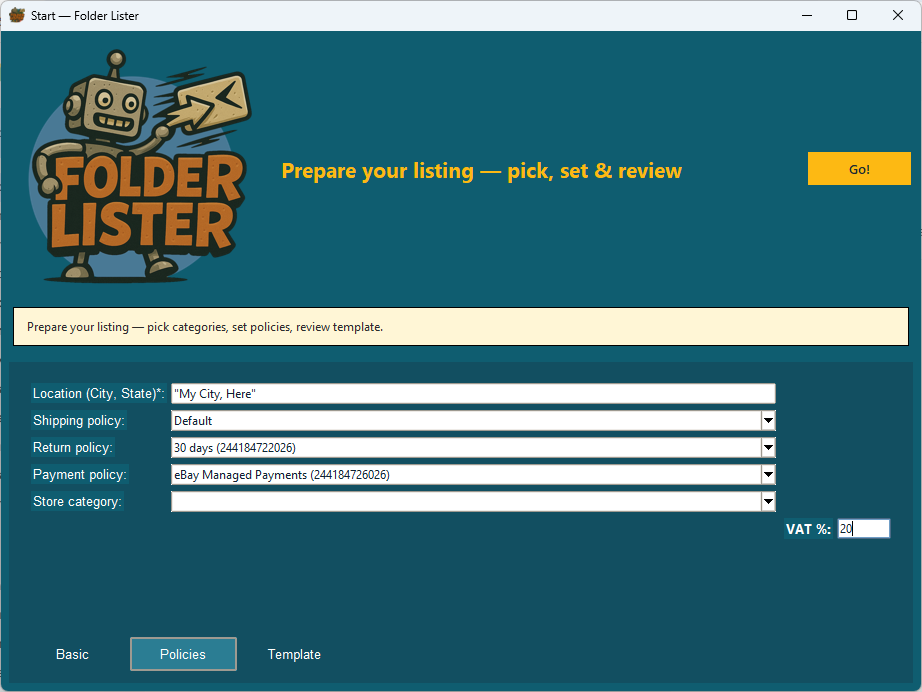
On the Policies tab you set:
- Location (City, State)
- Shipping policy
- Return policy
- Payment policy
- Store category
- VAT % (optional)
Select the business policies returned by your eBay account. If the lists are empty, check the selected eBay site and use Refresh policies… in the listing-settings editor. Your eBay account must already be configured for business policies.
8. Create your first draft batch
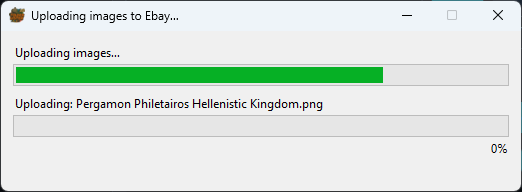
When everything is set, press Go!. Folder Lister uploads your images to eBay (EPS). A progress dialog shows which image is being uploaded.
When the upload finishes, the app opens the Web Editor with your drafts ready for review and bulk editing.
Next steps:
- Fine-tune large batches of drafts with the Bulk Editor.
Variation listings — one eBay listing with buyable options
A MultiListing looks like several rows in the desktop app because each row supplies one option. That does not mean Folder Lister will publish several listings. When the draft reaches the Web Editor, the rows are combined into one parent listing with a Variations table.
1. Open Variation listings and add the option rows
Choose Variation listings from the start menu. Add items from a folder or select existing eBay items, then click Add to MultiListing. Use one row for every option a buyer can choose.
2. Choose the main item
The first item added becomes the main item. It supplies the parent listing title and listing photos. It is also the source for the description and condition sent with the parent draft. If another row should be the main item, right-click that row under ITEMS TO REVIEW and choose Set as main item.
3. Define the variation schema
Choose Attribute 1 such as Color, Size, Type or Variant. Tick Use attribute 2 only when buyers need a second choice, such as Color + Size. Fill the corresponding attribute values for every buyable row. Each combination must be unique.
4. Decide whether the main item is buyable
Tick Main item is not a variation and not buyable when the main row is only a gallery or group photo. Its images become the parent listing photos, but the row is left out of the buyable variations.
Leave the box unticked when the main item is itself one of the options a buyer can order. It will then appear in the Variations table alongside the other rows.

5. Set the listing-level description and policies
Right-click the main row and choose Write description if you want to set it in the app. You can also edit the parent description after the draft opens in the Web Editor. The description, condition and policies belong to the parent listing; the individual variations only need their own SKU, price, quantity, attribute values and images.
If the active product profile has a linked listing-settings profile, Folder Lister carries those policies into the draft and skips the manual setup. Otherwise, complete the one-off setup when prompted.
6. Create the draft and verify the Variations window
Click Create draft. In the Web Editor, you should see one parent listing row. Its quantity and start price can show a dash because those values come from the buyable variations. Click Variations… or Edit to check every option.

Before publishing, check:
- every buyable option has a unique attribute combination;
- each option has the right SKU, price, quantity and images;
- at least one row is buyable;
- the parent description, condition and business policies are correct.
Web Editor — final check, publishing and recovery
The Web Editor is the final stop in the standard workflow. Your uploaded drafts land here for one last check before anything goes live. You can still review images, fix individual fields and apply one value to many selected listings.
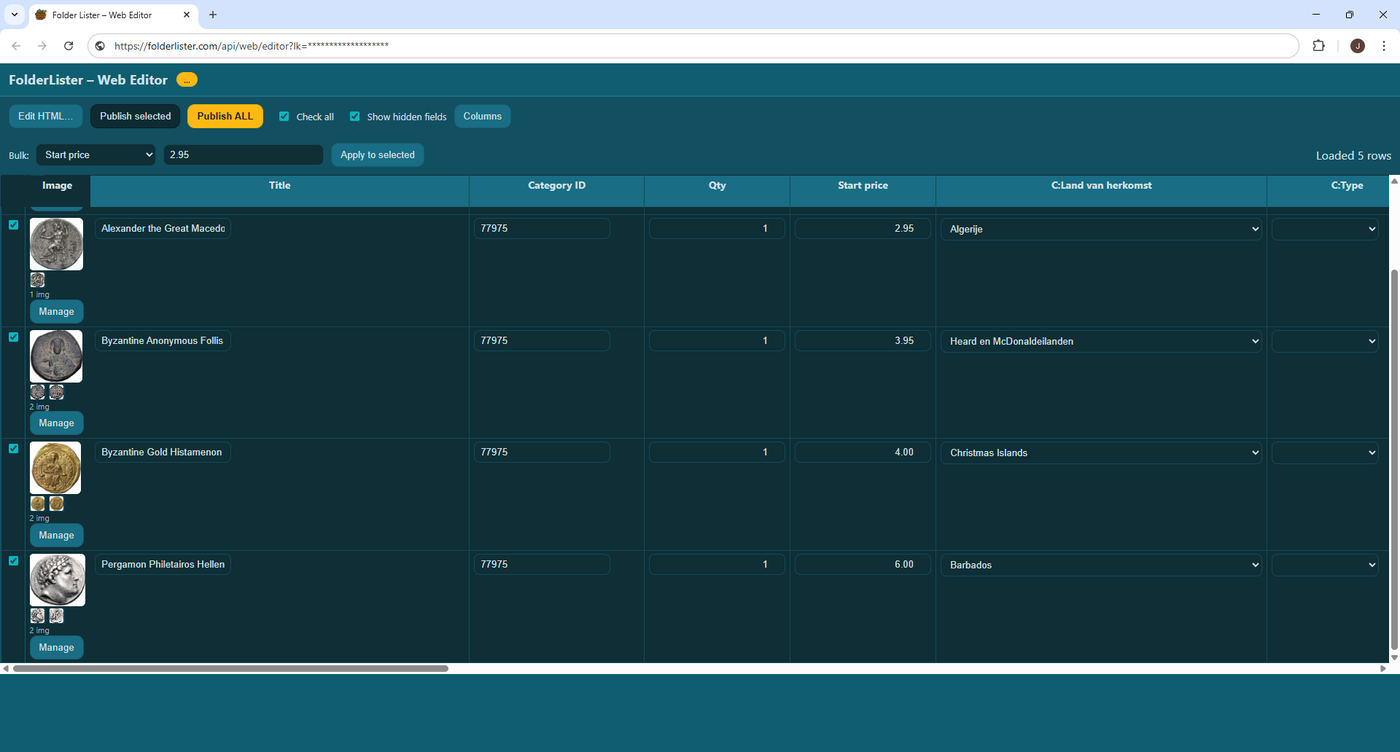
Bulk editing fields
To bulk-edit listings:
- Tick the checkboxes for the listings you want to change.
- Use the Bulk dropdown at the top to choose which column you want to edit (for example Start price).
- Enter or pick the new value.
- Click Apply to selected.
This works for prices, quantities, item specifics, categories, policies and more.
Publish drafts
When everything looks good, publish your drafts to eBay:
- Publish selected – only the checked listings are sent.
- Publish ALL – the entire batch is sent.
Be mindful of your eBay fee structure and free-listing limits before publishing large batches.
Return to the most recent web batch
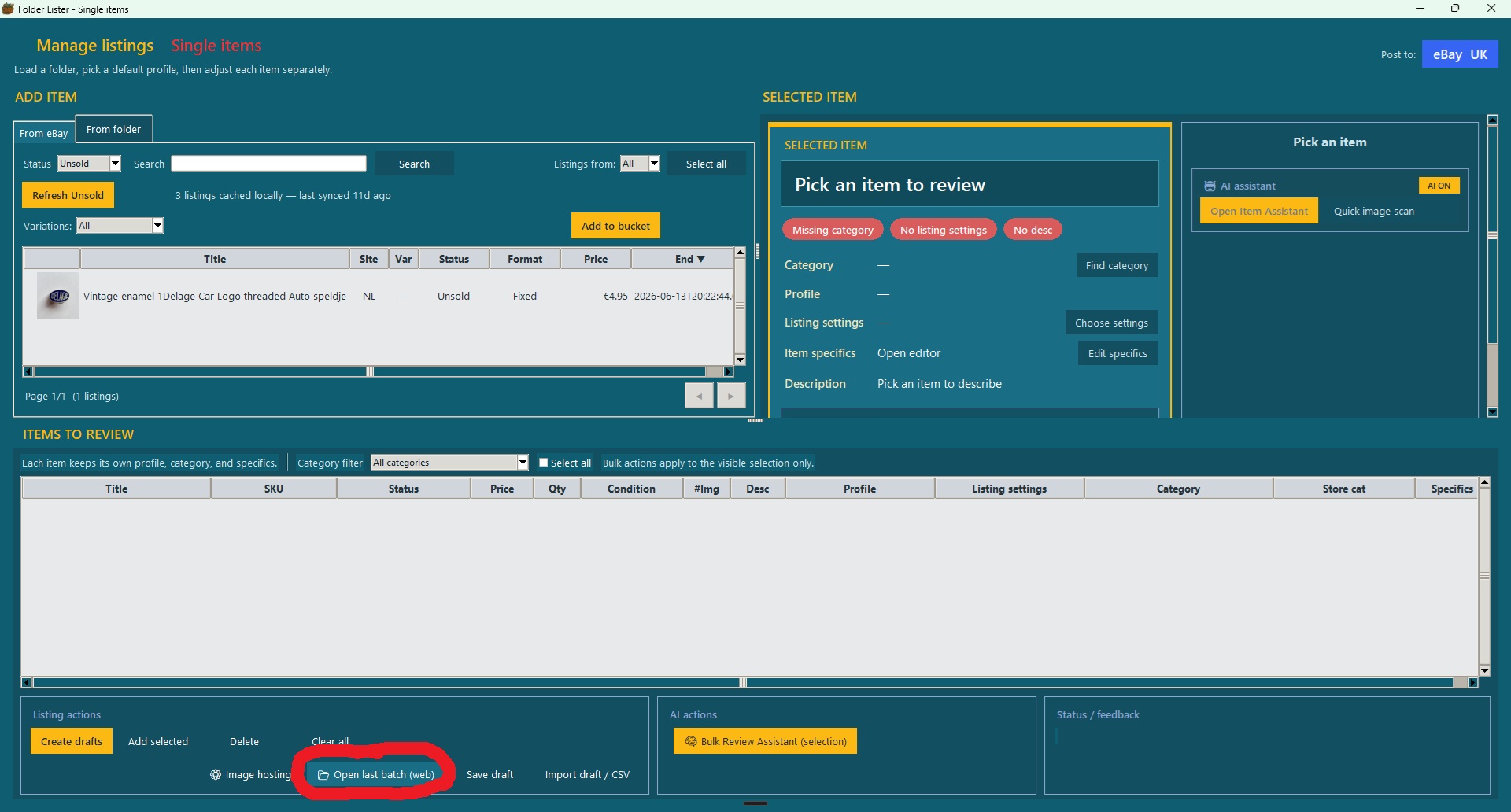
If you close the browser before publishing, return to the desktop app. Under Listing actions, click Open last batch (web). Folder Lister opens the most recent batch saved for your licence; it does not rebuild or re-upload the items currently visible in the desktop window.
Return to an earlier web batch
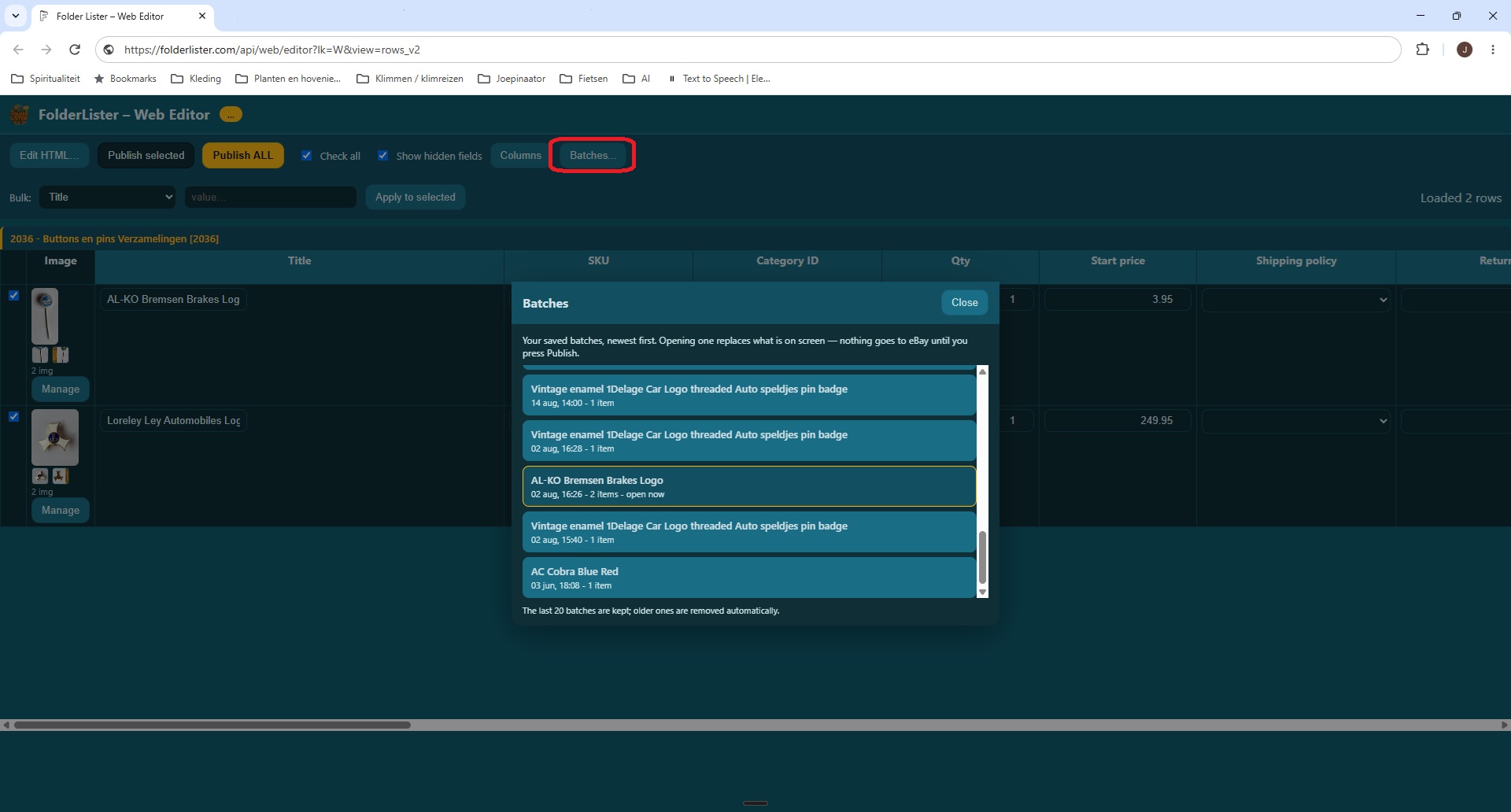
In the Web Editor, click Batches… and select the batch you want to reopen. Folder Lister keeps the latest 20 batches for your licence; older batches are removed automatically. Reopening a saved batch does not use AI credits.
Item specifics & title codes
After price, quantity and extra-photo codes, the next useful layer is structured product data. Item specifics control details such as brand, material, size and country of origin. Set stable values in a profile, then use short bracket codes only for values that change per item.
1. Folder-level item specifics
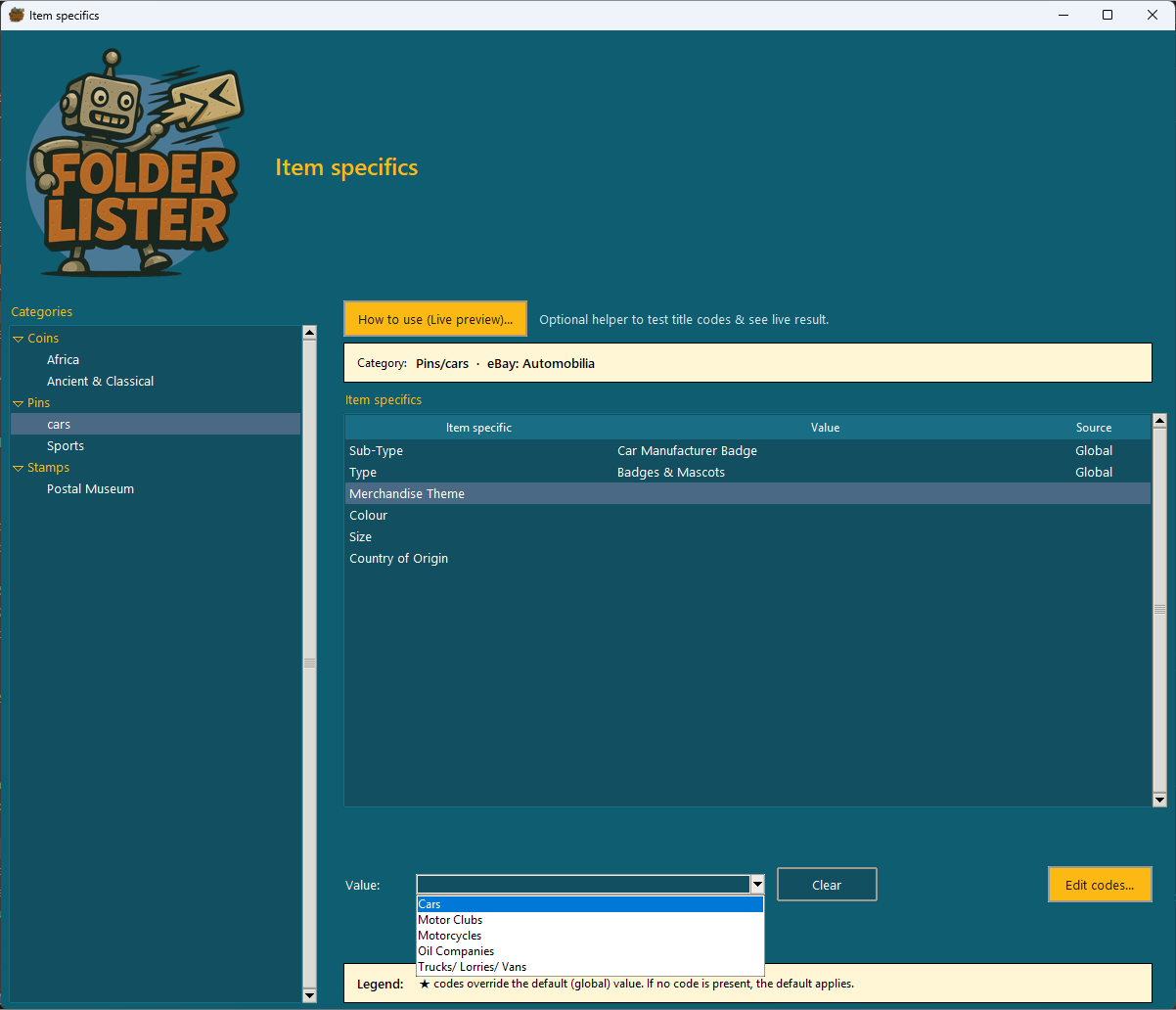
Select a folder in the left tree, then click the item specific you want to edit. At the bottom, choose a Value to lock that specific for the whole folder.
You can still override values later per item in the Web Editor, but folder-level values are a quick way to keep large collections consistent.
2. Edit codes for an item specific
Click Edit codes… to open the code editor for the selected item specific.
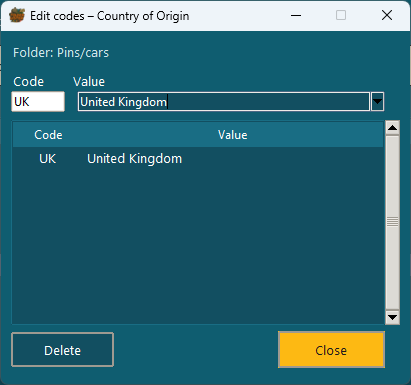
In this example, the code UK is linked to the item specific Country of Origin = United Kingdom. You can add as many codes as you like per folder.
3. Using codes in titles
![Filename example using [S] for Silver](/docs/images/title-code-example-silver-filename.png)
Once a code is defined, you can use it directly in your filenames or titles, for example:
Alexander the Great Coin[UK].jpg
During processing, [UK] is picked up as the code and converted into Country of Origin = United Kingdom for that item.
This is ideal when you want to drive everything from titles and avoid extra manual work in the Bulk Editor.
For an overview of all supported codes and advanced tricks, see the upcoming Title codes overview section.
Title codes
Title codes let you add preset text before or after your title and trigger extra automation such as item specifics, prices and quantities.
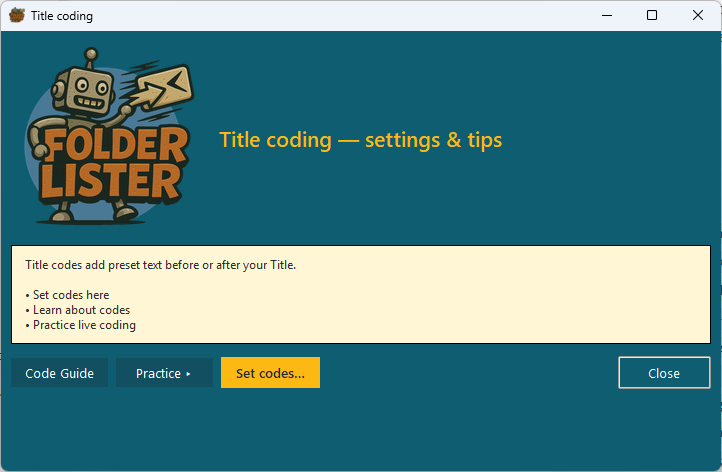
Open the Title coding window from the main menu. From here you can:
- Code guide — jump to this documentation section.
- Practice — open a live preview per folder to test which codes are active.
- Set codes… — define and edit the actual title codes.
Set codes
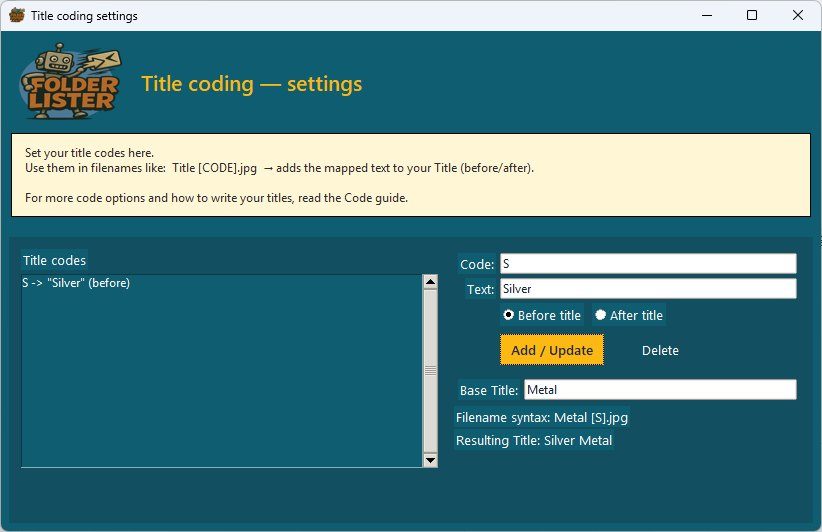
In the Title coding — settings window you define your codes. Each code has:
- a short Code (for example
S), - the Text that should be added (for example
Silver), - and whether it is added before or after the title.
In this example the code [S] adds the word Silver to the title.
Example filename:
Alexander the Great Coin[S].jpg
During the run this becomes a title like Silver Alexander the Great Coin (depending on your before/after choice). Title codes can be combined with item specifics: the same code [S] can both set the item specific Material = Silver and add the word Silver to the title, producing highly searchable listings with minimal typing.
More advanced codes for prices, BIN, bundles and quantities are covered in the overview below.
Complete filename-code reference
This optional reference collects every filename pattern Folder Lister can extract. The basic chapter is enough to begin; use this section when you want explicit markers, bracket codes or legacy quantity formats.
The “Title coding” toggle
Filename parsing is off by default for new installs. This keeps Folder Lister safe for users whose filenames happen to end in digits (for example camera-generated names like Untitled 2261.jpg) — without the toggle they are not misread as prices.
You enable filename parsing in one of two places (both bound to the same setting, persisted across restarts):
- Manage listings — From folder tab: the checkbox “Title coding (filename codes)”, just below the Add files / Add folder buttons. Hover the checkbox for a quick example tooltip.
- Main menu → Title coding → Settings → “Use filename codings (price, quantity and bracket codes)”.
A change takes effect on the next Add files / Add folder action. Items already in the bucket keep the price and quantity they had at load time — reload the folder to apply the new toggle.
Always-on patterns (work even when the toggle is off)
These patterns contain an unambiguous marker (brackets [ ] or a literal n before the price) so they cannot be triggered by accident. They are parsed regardless of the toggle setting.
| Filename | Parsed as |
|---|---|
Coin[VE3]395.jpg | title “Coin”, code VE3, price 3.95 |
Coin[VE3]N395.jpg | title “Coin”, code VE3, price 3.95 (explicit N) |
Coin n395.jpg | title “Coin”, price 3.95 (explicit n marker, no brackets needed) |
Coin[VE3]395x2.jpg | title “Coin”, code VE3, price 3.95, qty 2 |
Coin[VE3]G395.jpg | title “Coin”, codes VE3 + G, price 3.95 (suffix code ‘G’ mapped via Title coding) |
Bare / Space patterns (require Title coding ON)
Filenames without brackets or an n marker are only parsed when the toggle is on. This covers the most common “title + price” convention.
| Filename | Parsed as |
|---|---|
195.jpg | price 1.95, qty 1 (no title) |
Dolphin 195.jpg | title “Dolphin”, price 1.95 |
Mascot Relax 195.jpg | title “Mascot Relax”, price 1.95 |
Dolphin 395x2.jpg | title “Dolphin”, price 3.95, qty 2 |
Dolphin 2x995.jpg | title “Dolphin”, qty 2, price 9.95 |
Dolphin 9953x.jpg | title “Dolphin”, price 9.95, qty 3 (legacy PRICE QTY x format) |
Price-vs-quantity rule for AxB patterns
When the tail of the filename is two numbers separated by x (for example 395x2, 2x995), Folder Lister decides which is price and which is quantity by digit count:
- If A is 3-6 digits (a plausible cents value): A = price, B = quantity. Example:
395x2→ price 3.95, qty 2. - If A is 1-2 digits (too small for a cents price): A = quantity, B = price. Example:
2x995→ qty 2, price 9.95.
Prices are always written as cents in the filename:
295 means 2.95, 1099 means 10.99, 12000 means 120.00. Decimal points or commas in filenames are not supported. Currency follows the eBay site you are publishing to (UK = GBP, NL/DE/FR/IT/ES = EUR, US = USD).
Bracket codes (SEO words + item specifics)
Brackets like [VE3], [S], [UK] are matched against your mappings defined in Title coding settings and your Item specifics codes. One bracket code can:
- Insert preset words before or after the title (e.g.
[S]→ “Silver” before title). - Set a structured item specific value (e.g.
[S]→ Material = Silver). - Do both at the same time when a code is defined in both lists.
Multiple bracket groups are allowed in one filename: Coin [S][UK]N395.jpg can apply Material = Silver, Country = United Kingdom, and set price 3.95 in a single pass.
Bundling extra photos to the same listing
To attach extra photos to an item without creating a new listing, end the filename with a trailing letter (b, c, d…). Folder Lister groups them automatically:
Dolphin 195.jpg     → creates the item
Dolphin 195b.jpg    → bundled extra photo
Dolphin 195c.jpg    → bundled extra photo

... 2x995.png → creates the item (qty 2, price 9.95)
... 2x995b.png → bundled extra image (b)What is NOT parsed
- Filenames with no brackets, no
nprefix, when Title coding is off. Safe default to avoid surprises with sequence-number filenames. - Number runs shorter than 3 digits or longer than 6.
Coin 1.jpgandCoin 1234567.jpgare left as title text only. - Mid-title numbers when brackets are present. In
W50 Red[VE2]G395.jpgthe50stays part of the title; only the tail after the last bracket is treated as price. - Decimal points or commas (use cents).
- Currency markers (currency follows the eBay site, not the filename).
Common gotchas
- With Title coding ON, filenames like
Untitled 2261.jpgare parsed as price 22.61. If you have camera-generated names like this, leave Title coding off or rename them before importing. - Bracket codes are matched against your known codes list. A bracket like
[XYZ]that doesn’t match any defined code is ignored for items specifics but still stripped from the title. - Changing the toggle does not retroactively re-parse already-loaded items. Use Add files / Add folder again on the same folder to pick up the new behaviour.
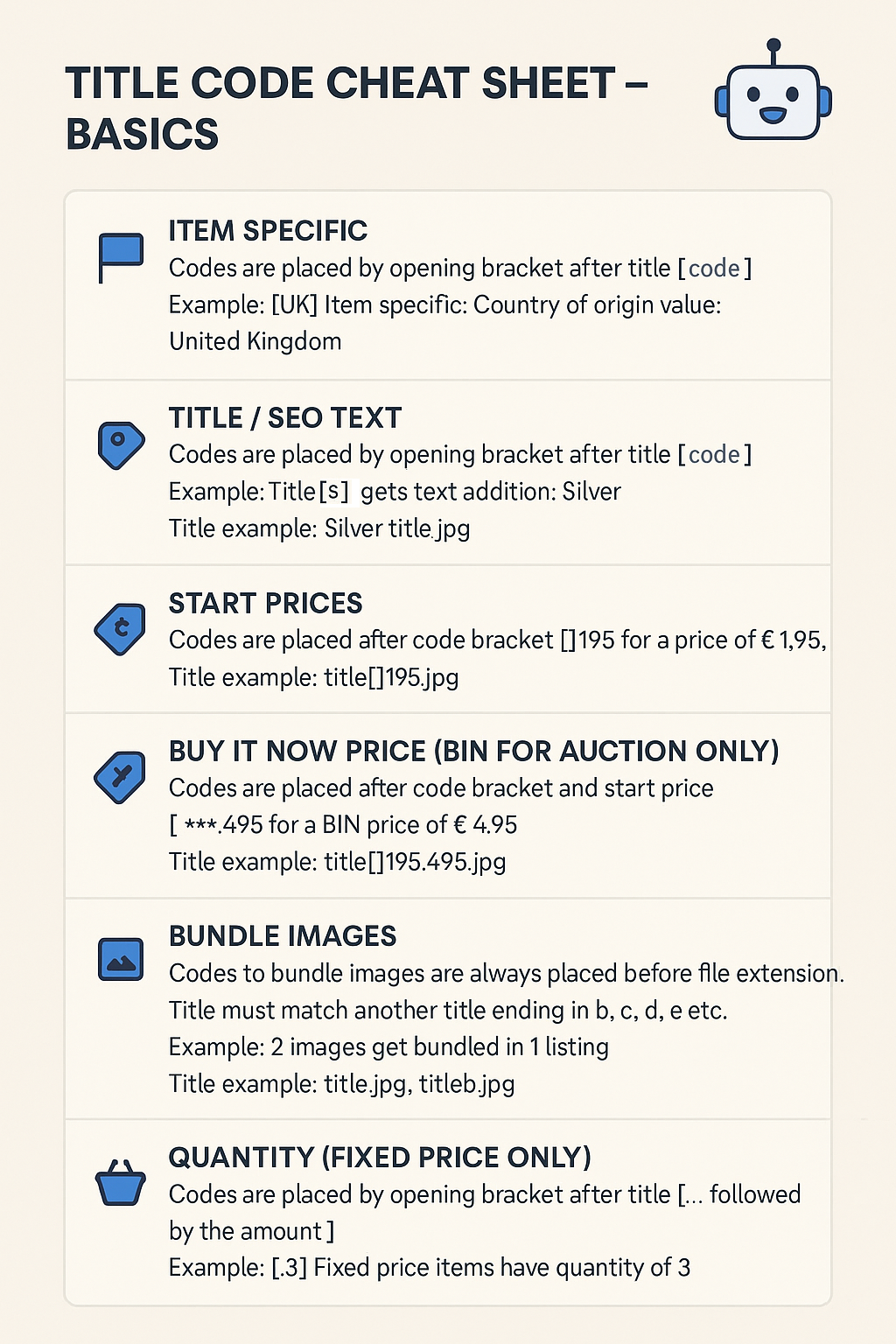
Combine these patterns with Item specifics and the Title codes section to drive almost your entire listing from filenames alone.
Video tutorials
These tutorials show how to edit an existing eBay variation listing and how to create a new MultiListing from a folder. Use the written steps above as the current reference for buttons and settings.
Edit eBay variation listings
This tutorial shows how FolderLister can edit and extend existing eBay variation listings. The MultiLister workflow and Variations Bulk Editor allow you to reopen a listing, add new items, and manage variations in bulk.
Create a new MultiListing
This tutorial shows how to create a new MultiListing in FolderLister by loading items from a folder, adding them to a multi-variation listing, applying a profile, and preparing the listing before publishing.
Using the AI item assistant
This tutorial shows how to use the AI item assistant in Folder Lister.
FAQ
Is the app free?
Yes, you can use it for free. Launch memberships may convert to paid later with advance notice.
Who pays eBay fees?
You do. Always check free‑listing limits and local rules before bulk publishing.
Are the rows in Multi-variations separate listings?
No. They are the inputs for one listing. If the Web Editor shows them behind one Variations button, they will be published as options within one eBay listing.
Why do I still see the manual policy screen?
Usually because no saved listing-settings profile is linked to the active product profile. Link one with your eBay business policies to skip the one-off screen. If it is already linked, refresh the policies for the selected site and try again.
Can I reopen the Web Editor after closing the browser?
Yes. In the desktop app, click Open last batch (web) under Listing actions to reopen the most recent saved batch. In the Web Editor, click Batches… to choose any of your last 20 saved batches. Reopening a saved batch does not use AI credits.
How do I report issues?
Email support@folderlister.com with logs/steps to reproduce.